How to Change the Colour of the Loaded GCode?
One you’ve loaded the GCode using the steps given in this section: Your First GCode Import. You will have a model loaded into your screen. Follow these steps to change the color:
- Click on either of these two modes on the top right of your 3D View. The Left one of the two is
Material Previewand the right one isRendered Preview. Explaining each one is not in the scope of this documentation but the left one will generally be less taxing on your computer and faster.

- This is what your model will look like after you pick one of these. Both are shown below:
 Material Preview
 Rendered Preview
 - I’m showing the rest in
Rendered Previewbut the process is the same in both of these. Select any layer on your model:

- Then if you go to the
Materialstab in thePropertieswindow. If you have a multimaterial GCode this tab will look a little different. Take a look at: How to Work With Multi-Material GCodes
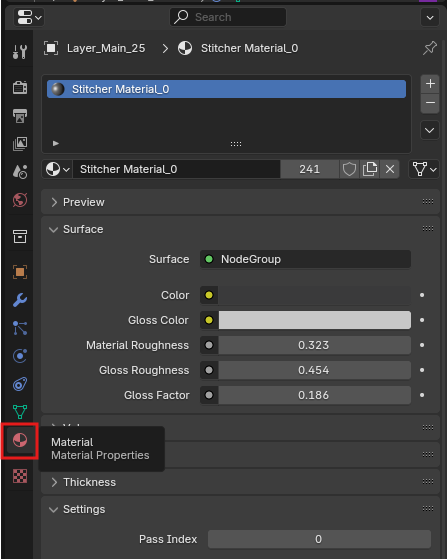
- Just select the material
Stitcher_Material_0and change the color to what you want to:

It is advisable to keep the colors slightly unsaturated as they look more realistic. - The
Gloss Coloroption will change the color of the shine. It will be advisable to keep it some shade of gray but you can play around for some creative results:
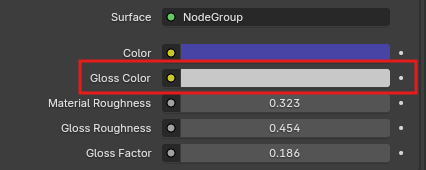
- The remaining three options are explained in the UI itself as well. You are not supposed to change
Material Roughnessa lot but play around with these and figure out some materials you like.