Scaling and Positioning
There are two ways to scale and position your models.
- It’s a beta feature for now so it does not “integrate” as well with the loaded build plate and camera and lights. I’m guessing you need to scale the model you probably have another scene and can set up a few lights yourself. In the future this will be made more seamless.
Method 1
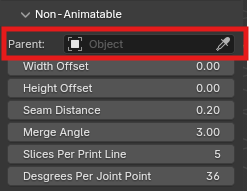
- Leave the Parent field empty in the addon window
- Then proceed to load GCode as you usually do. Refer here if you don’t yet know how: Your First GCode Import
- You will notice an
emptyobject in your collection:
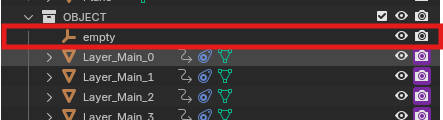
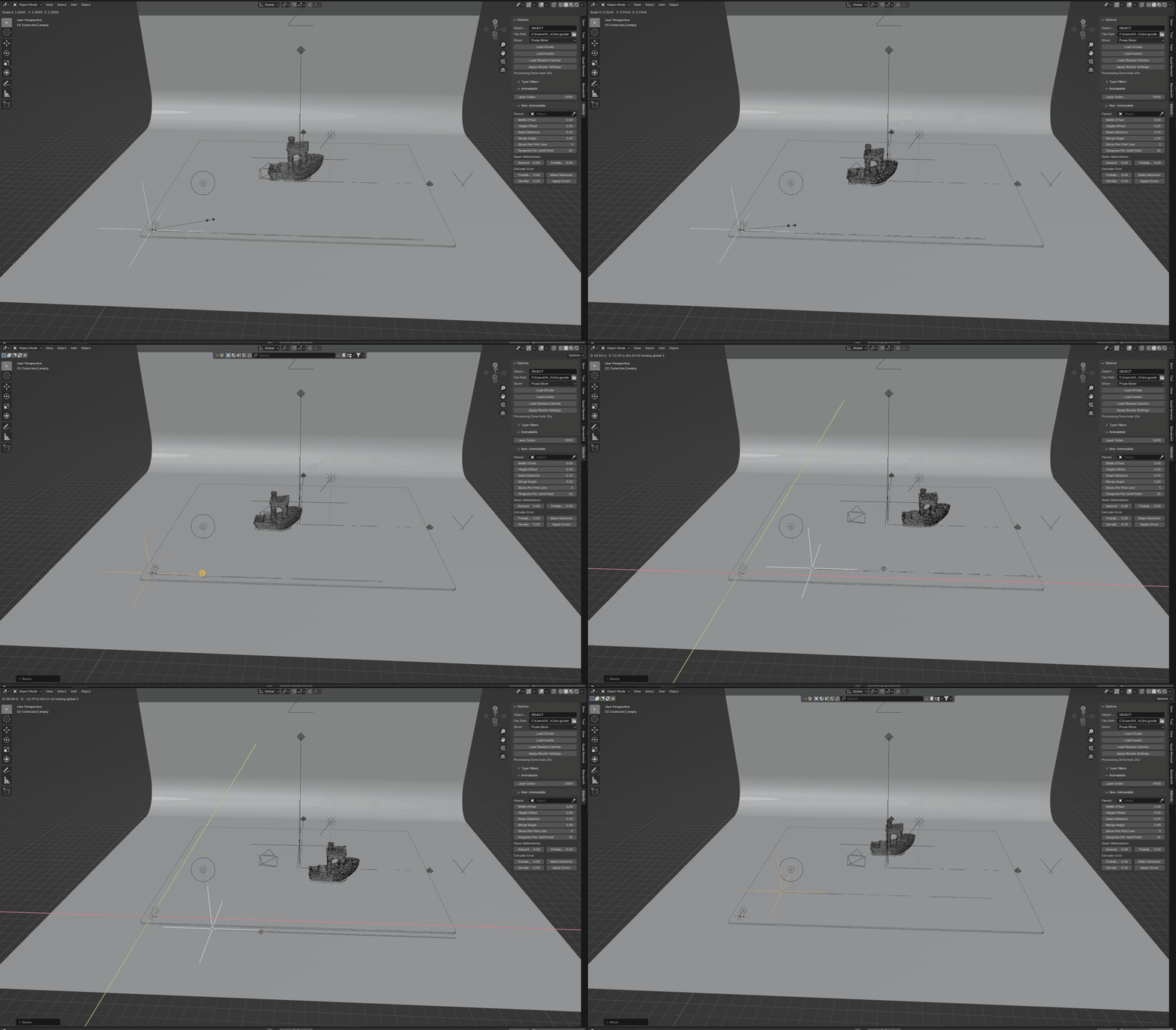
- Moving this object will also move your loaded GCode. This will basically, behave as the
originof your build plate. - Scaling this object will scale your loaded GCode
Method 2
- Create an
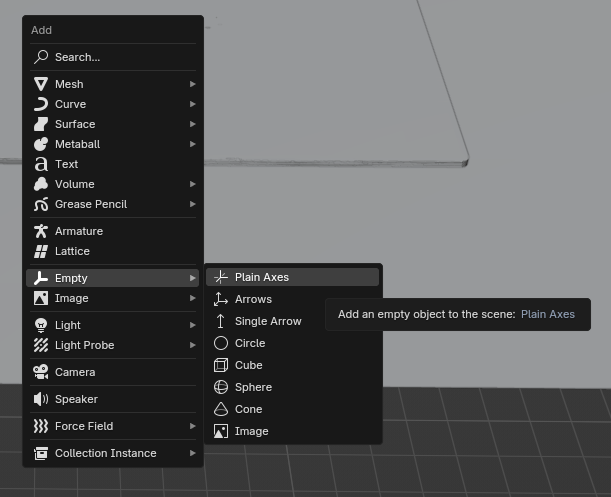
emptyobject in your scene:Shift + awill open the add menu. The just go toEmpty>Plain Axis
- Now you should have an
emptyobject in your scene
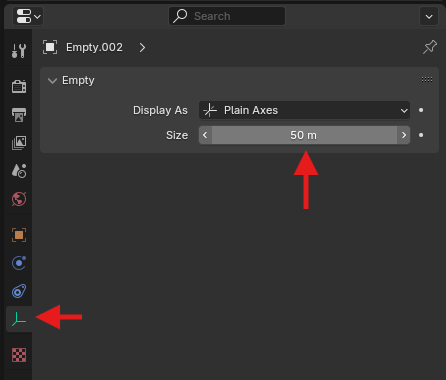
- (Optional) You can change the size of it. For the default scale of the assets
50mis recommended.
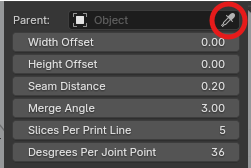
- Click the picker icon on the right side of the
Parentfield in the addon window
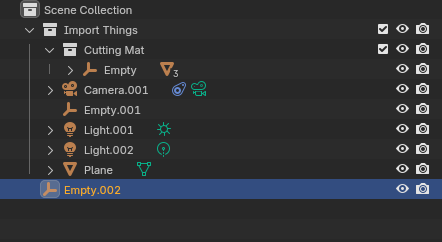
- Then click on the empty object you created in the viewport or the outliner. You can also just select it from the drop-down menu
- You can move this empty object around your scene to wherever you want. You can scale it or rotate it. When you load the GCode, this empty will basically, act as the origin of your build plate.
- This method is preferable if you are going to load your object in multiple passes. Let’s say once without supports and then just the supports so you can do some rendering magic with them